How do I save a shop order and record payment without duplicating the sale?
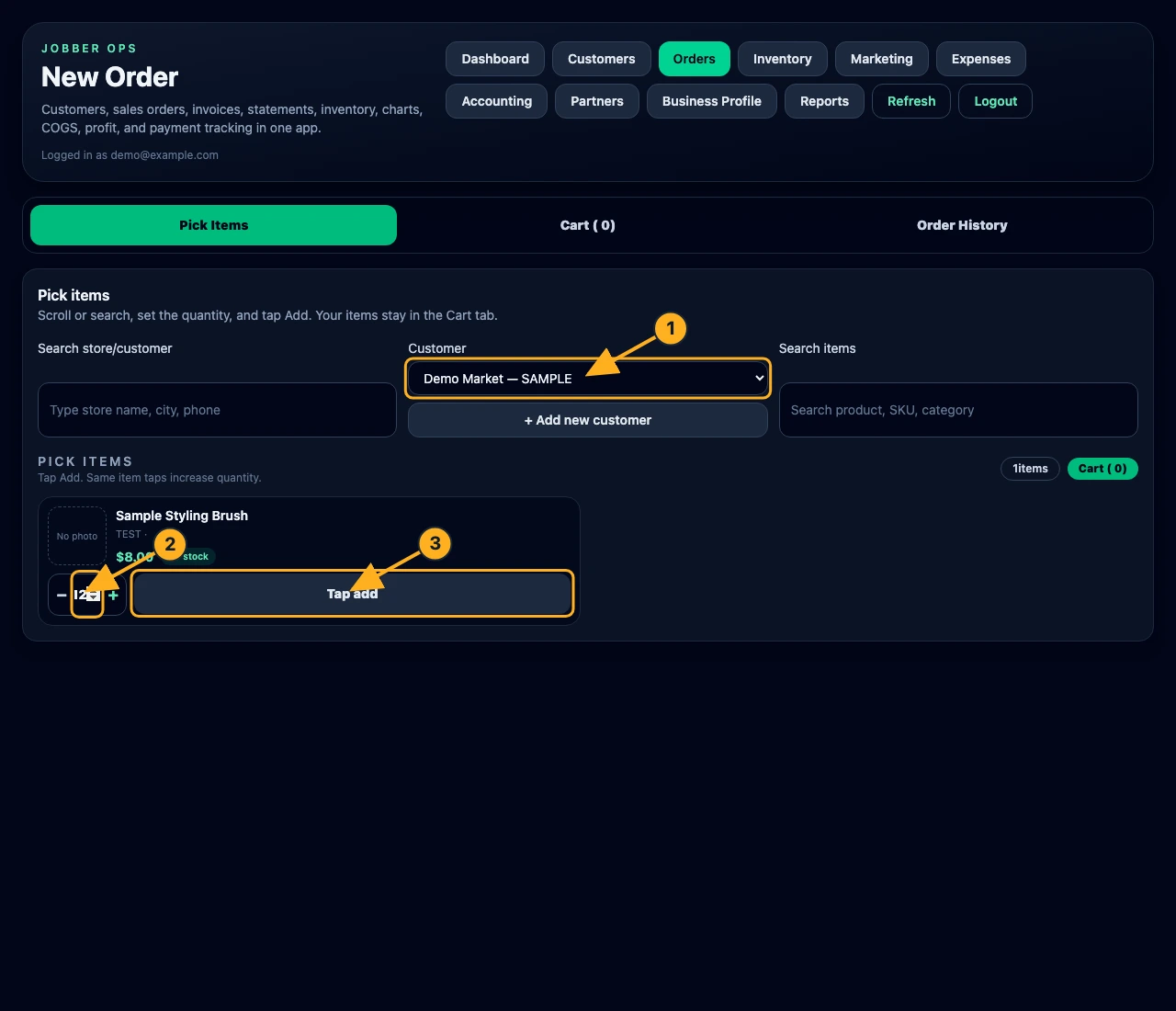
Example: Demo Market buys 12 Sample Styling Brushes at $8 each: $96. The sample customer and saved order are preloaded for this demonstration. Follow the numbers in each screenshot.
Actual Jobber Ops interface captured locally with fictional sample records and simulated services. Arrows and numbers are annotations. The saved order is preloaded; these images demonstrate the interface, not verified production persistence or payment processing.
1. Choose the customer and products
Open Orders → Pick Items. ① Select the customer. ② Enter quantity 12. ③ Tap add, then open Cart. The product name is sample data; the controls are the real app.
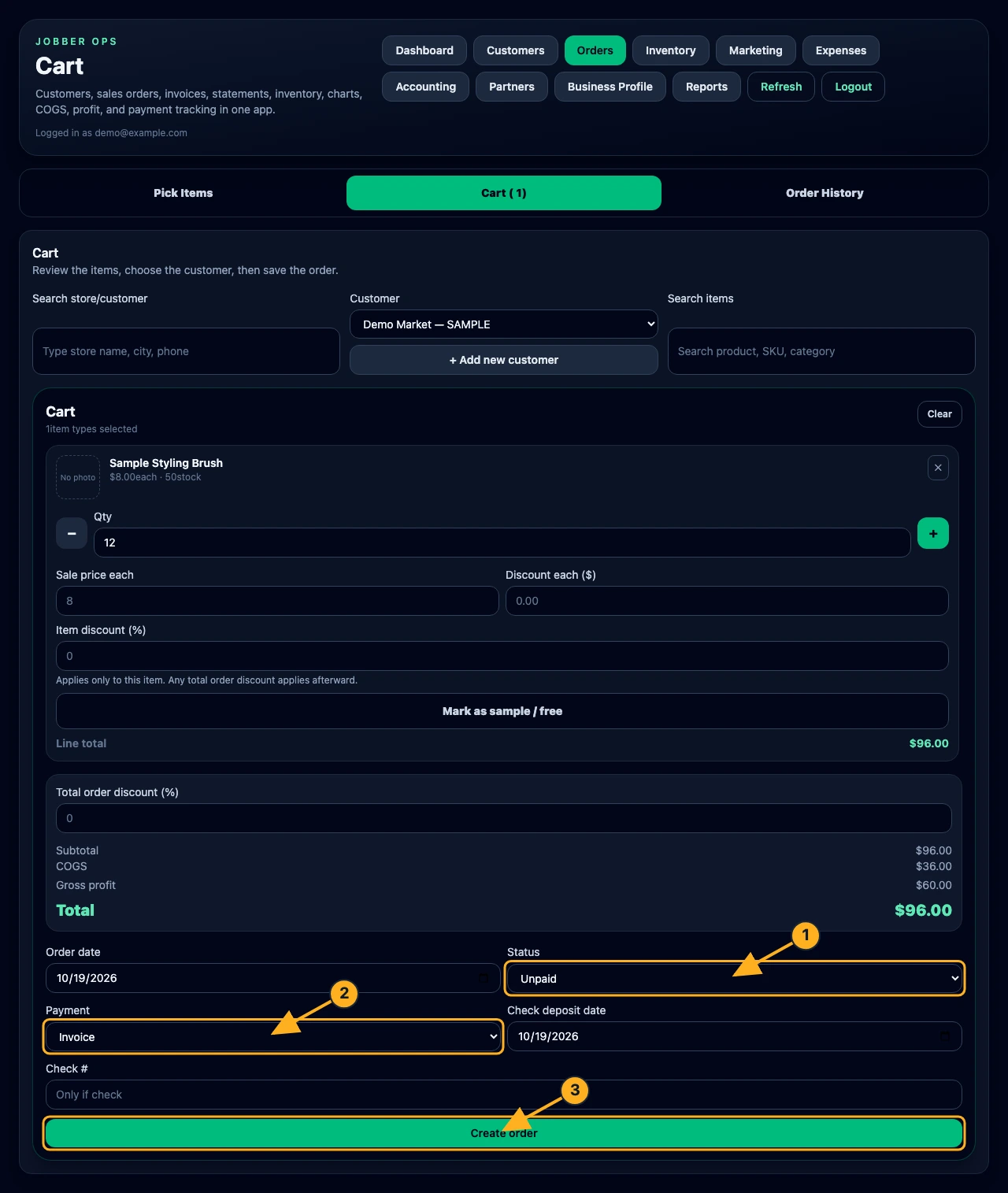
2. Check the total and save the order
Review quantity 12, price $8 and total $96. ① Choose Unpaid when no money has been received. ② Review the payment method; Invoice does not mean paid. ③ Click Create order once and verify it appears in Order History.
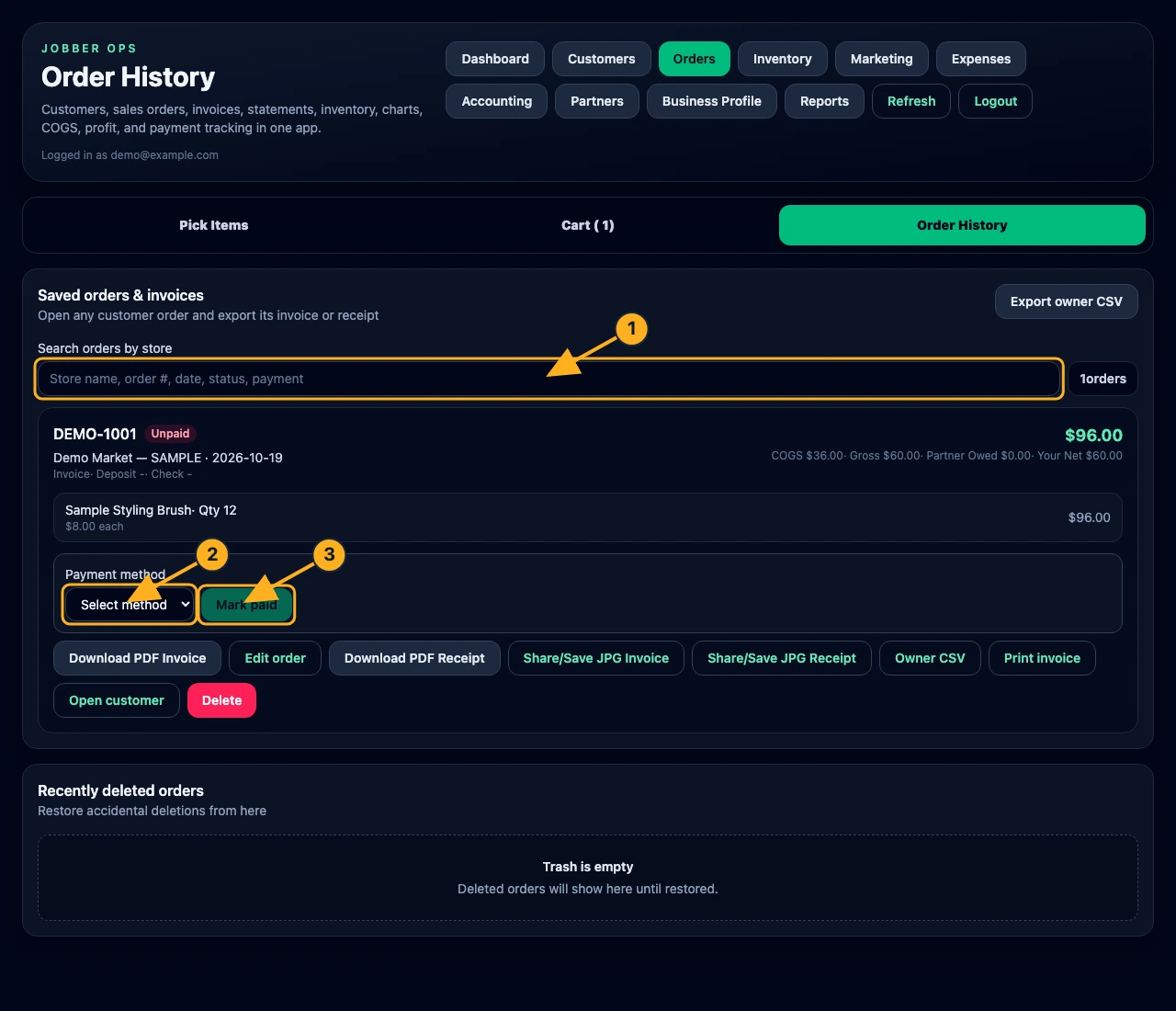
3. Find the original order when payment arrives
Open Order History. ① Search for the store or order. Confirm DEMO-1001 and $96. ② Select the actual payment method, such as Cash. ③ Click Mark paid only after receiving the full amount. Do not create another sale to record payment.
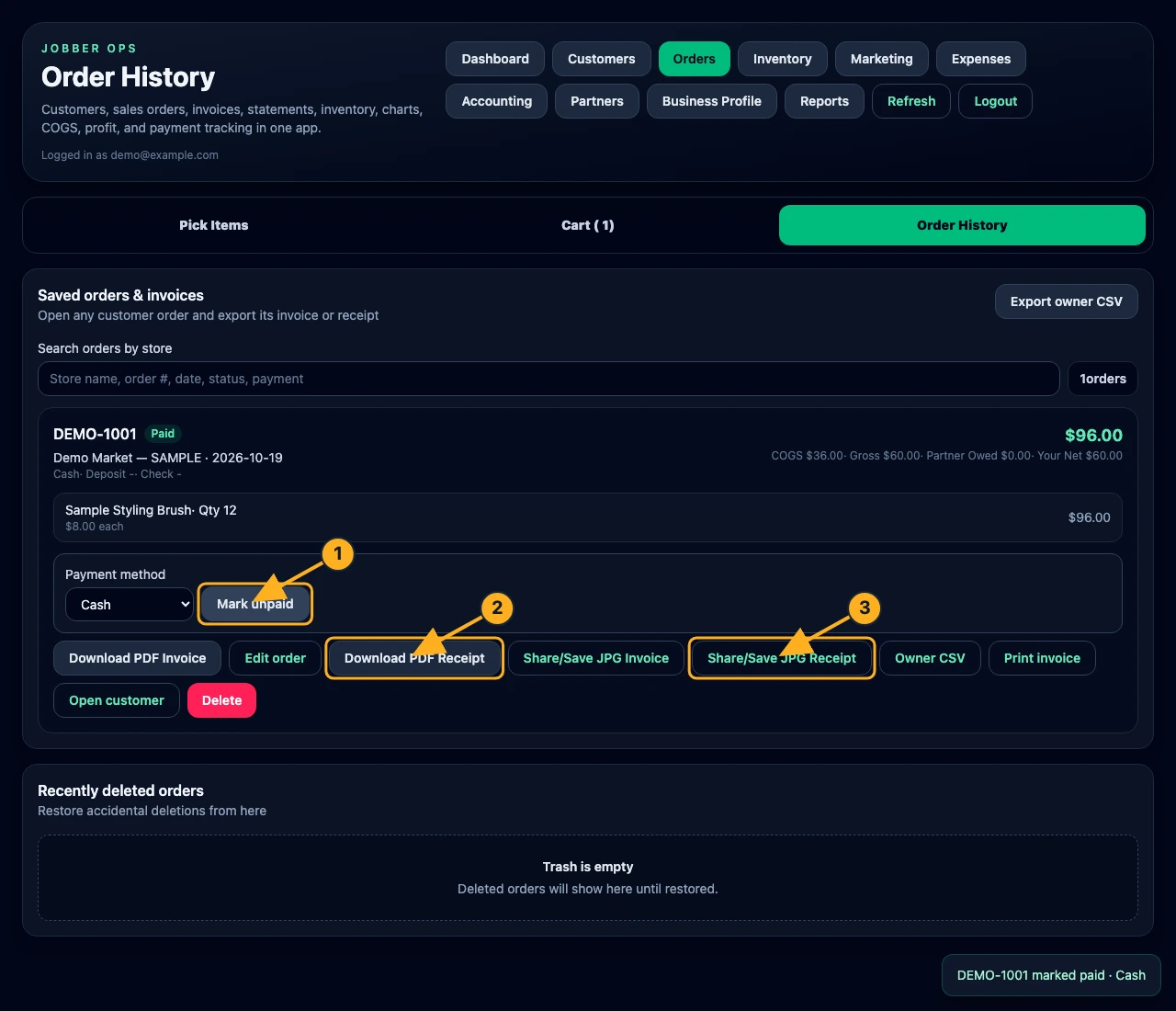
4. Check Paid, then send the receipt
After the status changes to Paid, ① the button becomes Mark unpaid; this is a reversal control, not the next step to click. ② Download PDF Receipt or ③ Share/Save JPG Receipt. Verify the customer and amount before sharing. This demo shows a full payment, not a partial-payment ledger.