Sales Look Great. So Why Is Your Wallet Unimpressed?
Your sales total is celebrating. Your wallet has requested a private meeting. Before blaming the calculator, check what each number actually means. The Jobber Ops dashboard helps you review recorded sales, product costs, expenses and stock—but those figures are not interchangeable.
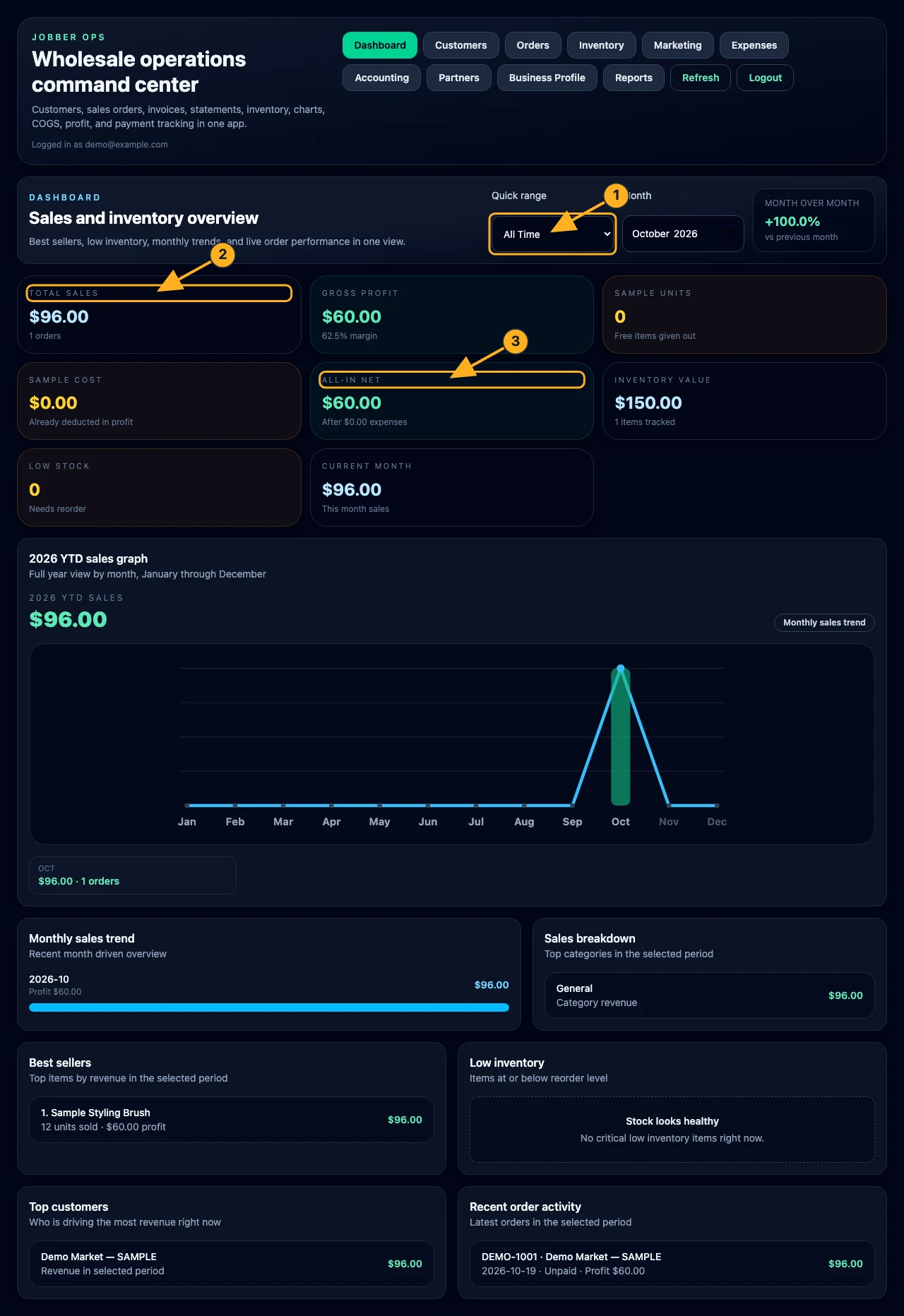
Real app interface captured locally on October 26, 2026, with fictional sample data and simulated services. Arrows are annotations. The expense save was exercised only in this isolated demo; the damage form is unsaved. These images do not verify production persistence or financial processing. Click an image to enlarge.
1. Give every number a date
Open Dashboard. ① Set Quick range to the period you want, or choose a Month. The screenshot uses All Time. Compare matching periods before deciding business is up or down. Inventory Value and Low Stock describe current inventory; they are not historical stock snapshots for the selected sales period.
2. Read past the exciting sales number
② Total Sales summarizes recorded order revenue, not proof that customers paid. Gross Profit reflects the product costs recorded with those orders, including sample costs. ③ All-In Net subtracts recorded expenses for the selected period from that gross-profit figure. It is not your bank balance, a tax return, or a complete accounting reconciliation.
3. Follow a small example
The sample order is 12 brushes at $8: $96 in sales. With a saved cost of $3 each, product cost is $36 and gross profit is $60. The screenshot has no recorded expenses, so All-In Net is also $60. If you then record an $18 packaging expense in the same period, the illustrative result becomes $42. The order is unpaid: a sales figure can exist before cash arrives.
4. Turn the review into one useful action
Scroll to Best sellers and Low inventory. Best sellers ranks products by revenue; Low inventory shows items at or below their reorder level. Use those together with your physical count to decide what to check or restock. Monthly sales trend and the year-to-date chart provide broader views, not necessarily the same scope as every filtered card.
Before closing the dashboard
Check the period, unpaid orders, saved product costs and missing expenses. Do not subtract Sample Cost again when it is already included in profit. Your dashboard is a useful review screen—not a magician that discovers receipts still hiding in the van.
Open Jobber Ops and check your dashboard