Your Odometer Has Receipts. Your Memory Has Vibes.
“I drove somewhere for work” is a weak trip description. Record the purpose and distance while you still remember which customer you visited.
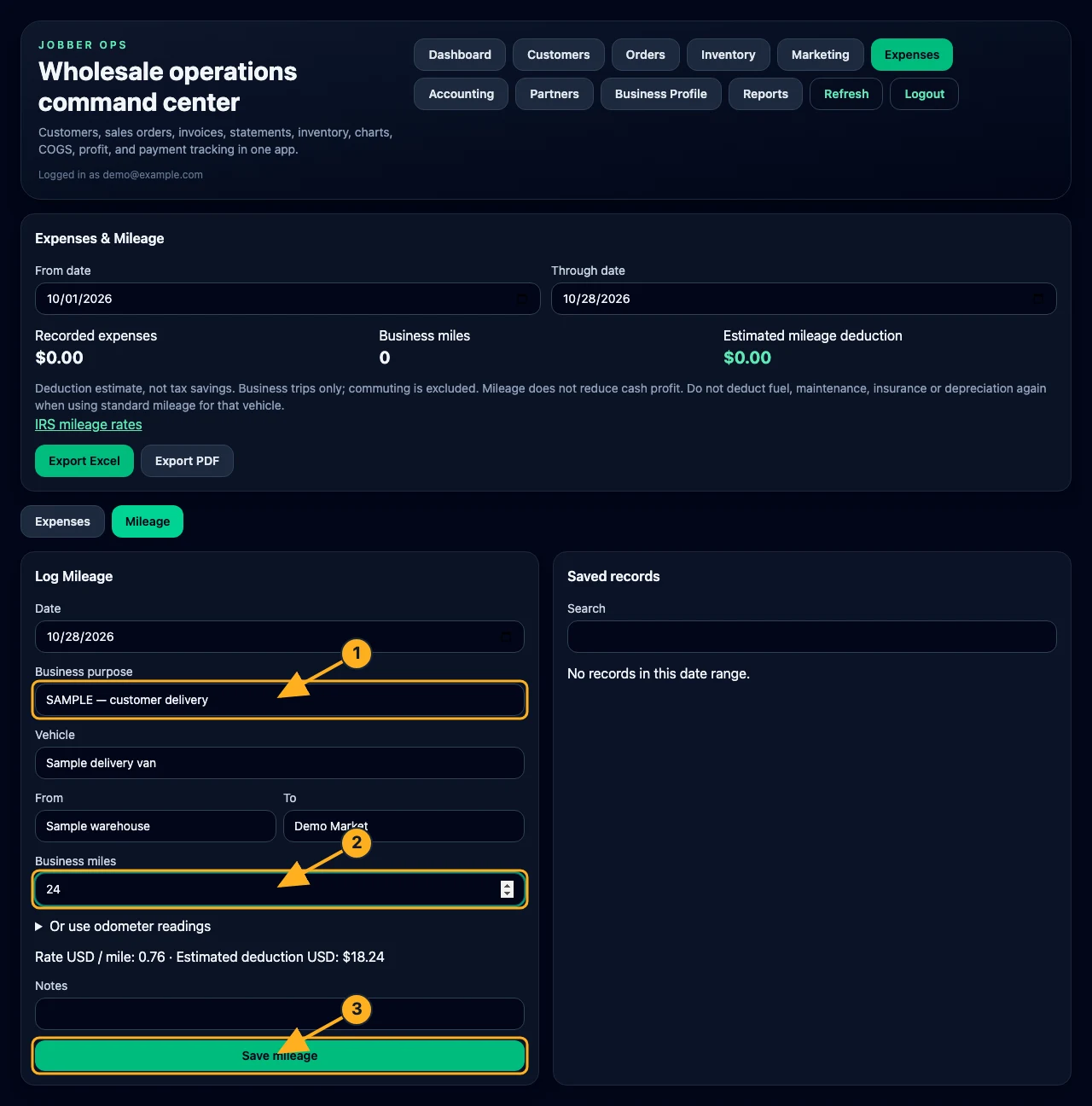
Actual app interface captured locally on October 28, 2026, with fictional sample records and simulated services. All pictured forms are unsaved. Numbered arrows are annotations, not app controls. Screenshots do not verify production saving. Click to enlarge.
1. Open the mileage form
Open Expenses, then select Mileage. Enter the actual trip date, Business purpose, and Vehicle. Use a specific purpose such as a customer delivery, not just “work.” The example shown is fictional and has not been saved.
2. Enter one distance method
Fill From and To, then Business miles. Our example uses 24 miles. Alternatively, expand Or use odometer readings and enter both the starting and ending readings; the form uses their difference. Do not add that difference again as another trip.
3. Save and review the right period
Check the route, date, and distance before Save mileage. After a successful save, review the record and choose the From date and To date covering the trip. A record outside the selected range will not appear in that period’s totals. These screenshots demonstrate the form, not production saving.
4. Keep miles separate from cash
The app displays a mileage deduction estimate using its configured rate table. That is not cash spent, a refund, or guaranteed tax savings; mileage does not reduce cash profit. Verify the applicable rate and eligibility against current IRS guidance before tax use. Exclude commuting and avoid double-counting vehicle costs under the standard-mileage method. The useful habit is a clear trip record, not guessing a bigger number at year-end.
Organize your trip records in Jobber Ops