Free for the Customer. Not Free for Your Business.
Two free brushes leave the van. Your customer smiles. Your inventory still needs an explanation.
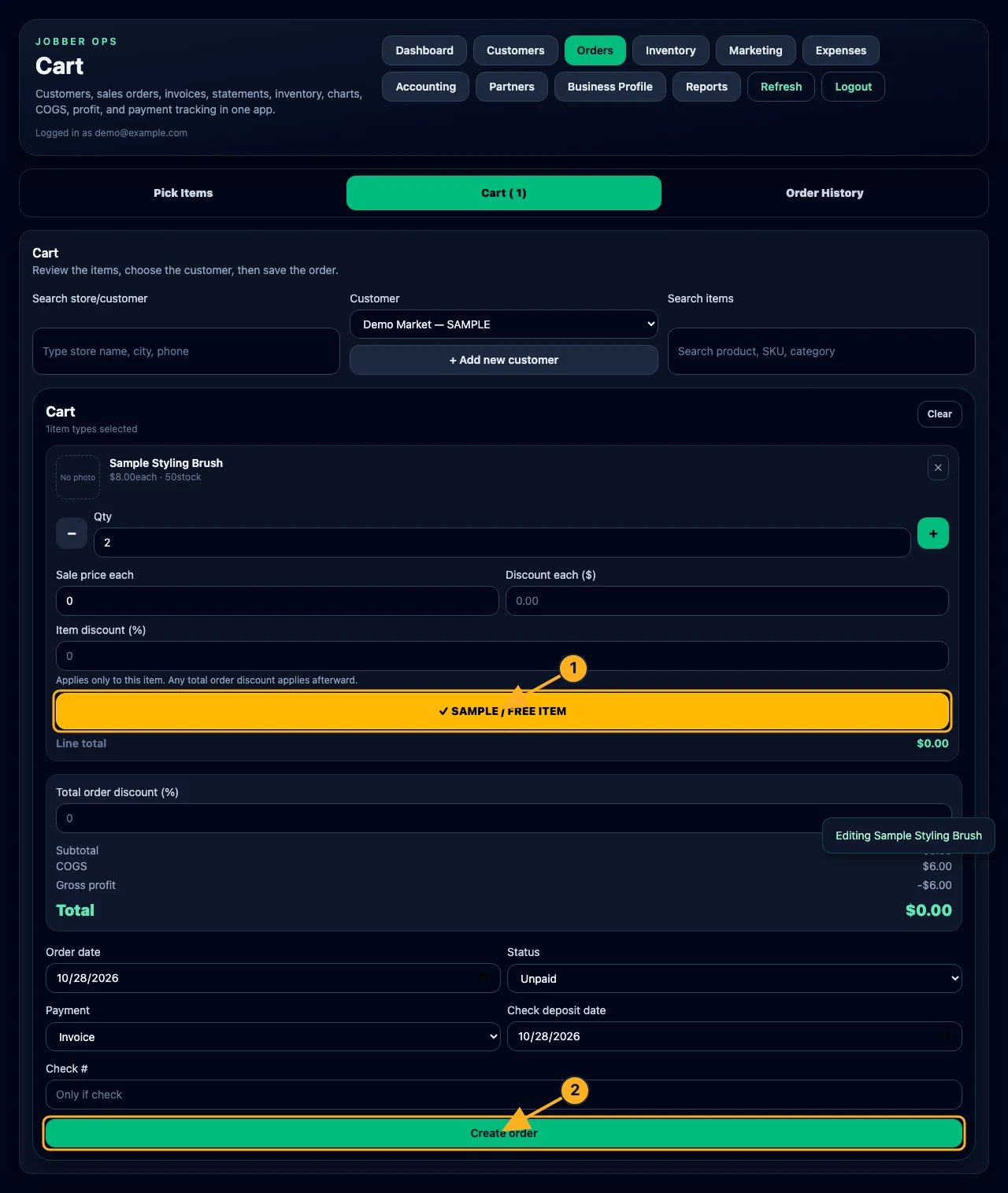
Actual app interface captured locally on October 28, 2026, with fictional sample records and simulated services. All pictured forms are unsaved. Numbered arrows are annotations, not app controls. Screenshots do not verify production saving. Click to enlarge.
1. Add the actual items
Open Orders, choose the customer, enter the quantity beside the product, and tap Tap add. Open Cart. In this example, two Sample Styling Brushes cost $3 each and normally sell for $8 each. These are fictional figures, not a product offer.
2. Mark the line as a sample
Tap Mark as sample / free. The button changes to ✓ SAMPLE / FREE ITEM. Check the quantity and the zero charge before using Create order. The screenshot shows an unsaved cart; it does not demonstrate a completed order.
3. Zero revenue does not mean zero cost
The sample flag makes this line’s revenue $0, but its inventory cost is still 2 × $3 = $6. The app includes sample cost in profit calculations. Do not also enter the same $6 as an expense merely to account for the sample: that would count the cost twice.
4. Check the record, not your memory
After a successful save, review the original order and the Dashboard’s Sample Units and Sample Cost for the relevant date range. Confirm stock reflects the quantities given away. A sample is neither a paid sale nor damaged stock. Your customer can get a freebie without your records getting a fictional customer called “Marketing Magic.”
Try the sample workflow in Jobber Ops