“We Have Plenty” Is Not an Inventory Count
The shelf looks full until three customers ask for the same item. Set a low-stock threshold before optimism becomes your purchasing department.
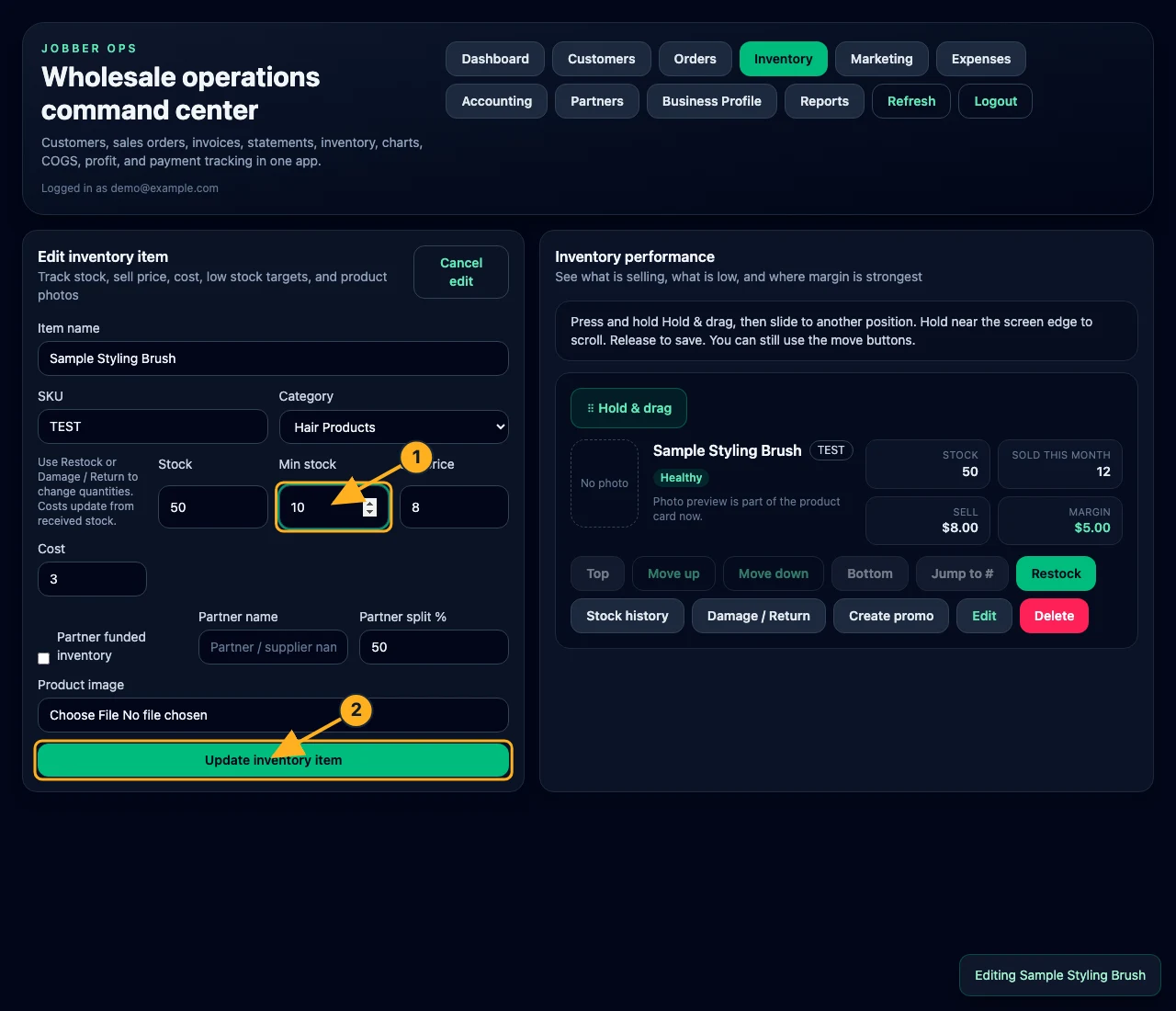
Actual app interface captured locally on October 28, 2026, with fictional sample records and simulated services. All pictured forms are unsaved. Numbered arrows are annotations, not app controls. Screenshots do not verify production saving. Click to enlarge.
1. Find the right product
Open Inventory and identify the product by its name and SKU. Check its Stock value. A healthy badge reflects recorded stock, not a physical count, so resolve missing sales or stock movements before trusting the number.
2. Set your warning point
Tap Edit on that product. Enter a sensible quantity in Min stock, then use Update inventory item when ready. Arrow 1 marks the threshold; arrow 2 marks the save button. This screenshot shows an unsaved example of 10, not a saved change.
3. Understand the boundary
The Low stock badge appears when recorded stock is less than or equal to Min stock. With a threshold of 10, both 10 and 9 qualify; 11 does not. Choose the threshold based on your own sales pace and supplier lead time. The app does not choose it for you.
4. A warning is not a purchase order
Use the badge as a prompt to check the shelf and contact your supplier. It does not automatically order stock or guarantee a delivery. When goods actually arrive, use Restock. Editing the threshold is not a way to add units; existing-item stock changes use the stock workflow.
Check your inventory in Jobber Ops