Turn a Return Into Customer Credit—Then Apply It to the Next Order
A customer returns merchandise, but they are already placing another order. Instead of sending a refund and collecting another payment, you agree to put the return amount toward their next purchase. Jobber Ops keeps that credit on the customer’s account until you apply it.
Screenshots show the current Jobber Ops interface running locally on November 16, 2026, with fictional sample products and simulated services. Credit conversion and application were exercised in this isolated demonstration with simulated services; no live account was changed. These screenshots are not records of live customer transactions.
1. Add credit from the existing return
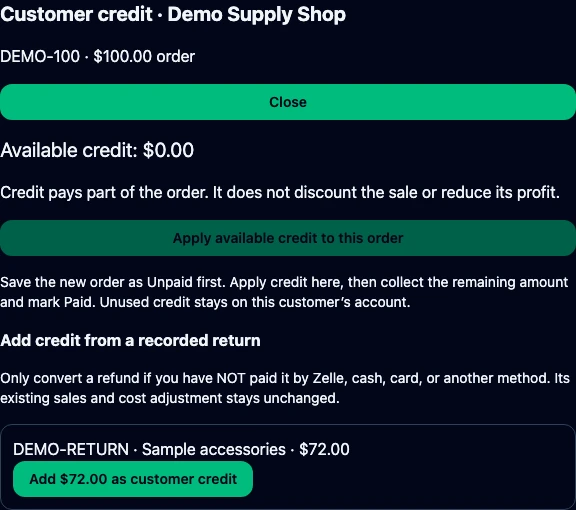
For a return already recorded with a refund amount, open Customers → select the account → Customer credit. Find the return and tap Add as customer credit. Confirm that you have NOT already sent the refund by Zelle, cash, card, or another method. This converts the existing return amount; it does not create another stock return or a second sales deduction.
2. Check the available credit
The account now shows Available credit. Adding it to the account does not automatically apply it to an order. In this fictional example, the customer has $72 available. Do not enter another return, discount, or expense for the same amount.
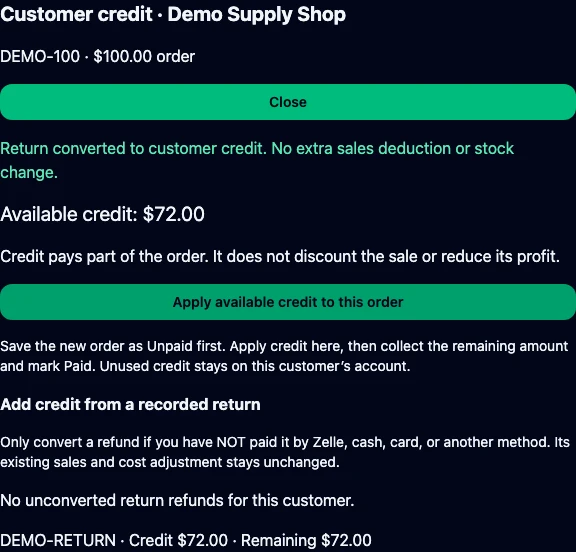
3. Save the new order as Unpaid, then apply credit
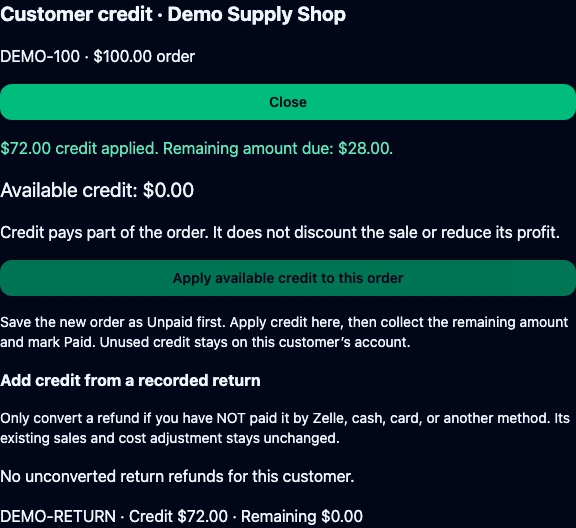
Create the new order with its normal prices and save it as Unpaid. Open History → the new order → Customer credit → Apply available credit to this order. In the demo, the order is $100.00 and the credit is $72.00, leaving $28.00 to collect. Credit pays toward the sale; it does not lower the new order’s prices or profit.
4. Collect only the remaining amount
If credit covers part of the order, it becomes Partial. If credit covers the full order, it becomes Paid. Credit left over stays on the customer’s account. After collecting the remaining payment separately, choose the payment method and mark the order Paid. Jobber Ops records the status; it does not transfer money.
5. Download a fresh invoice or receipt
After applying credit, download a new PDF or JPG. The document shows the order total, customer credit applied, and remaining amount due. A file downloaded before applying credit will not update automatically. In this example, the breakdown is $100.00 order total, $72.00 credit applied, and $28.00 remaining due.
Why the amount might not look reduced yet
If the panel still says $72 available, the credit has not been spent: tap Apply available credit on the saved unpaid order. The original order total remains the sale value; use Amount due to see what to collect. If an order already has an unrelated partial payment, the app asks you to review it rather than guessing how much cash was paid.
One return. One credit. No double counting.
Use credit instead of a refund—not in addition to one. This feature converts eligible recorded return refunds; it is not an unrestricted manual-credit entry. Orders with applied credit are protected against editing or voiding. The original return adjustment remains in place, and applying its credit does not deduct it again.
Manage customer credit in Jobber Ops